Enter your text
Type directly into the editor or paste content from another document.
 AiTextToHandwriting
AI Text to Handwriting lets you turn typed or pasted text into handwritten-style pages. Choose a handwriting font and paper style, adjust the page settings, preview the result, and export your pages as PNG, PDF, or ZIP.
Type directly into the editor or paste content from another document.
Select the handwriting font and paper background that fit the page.
Fine-tune the size, spacing, ink color, and layout settings.
Review the handwritten pages before downloading the files.
Download a selected page as PNG, or export pages as PDF or ZIP.
Enter your text directly into the editor or paste it from another document. You can use the converter for notes, letters, worksheets, journaling pages, and other text-based documents.
Open the editor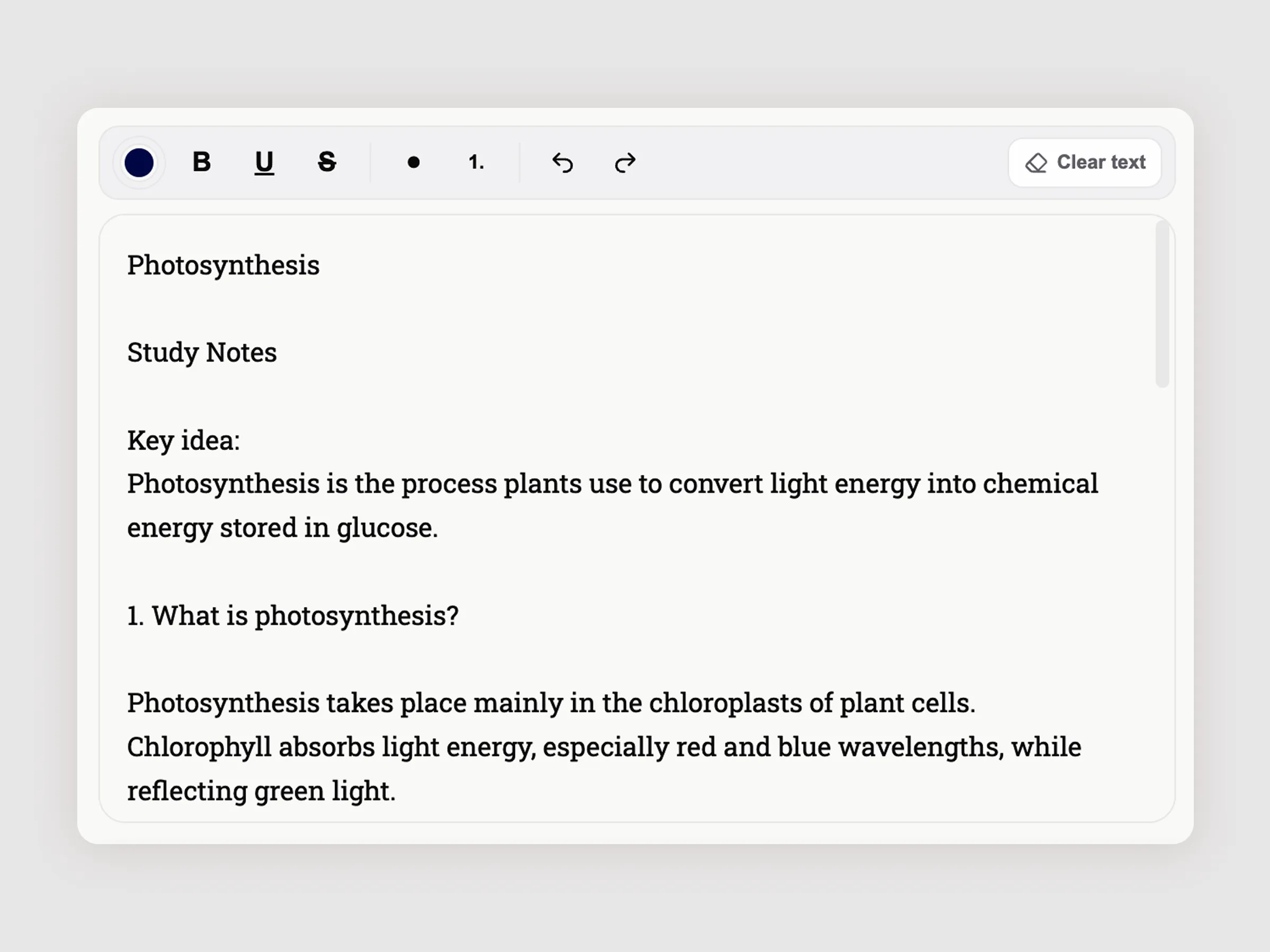
Choose a handwriting font and paper style to control the overall appearance of your pages. Use a readable handwriting font for study notes and worksheets, or choose a more personal style for letters and creative projects.
Select the paper style that best matches your intended use. Available paper styles include Plain White, Simple, 5mm Grid, Notebook, Cream Paper, Aged Paper, Recycled Paper, Wide Ruled, College Ruled, Narrow Ruled, 1cm Grid, Dot Grid, Engineering Graph, Legal Pad, Cornell, and Letter.
Open font and paper settings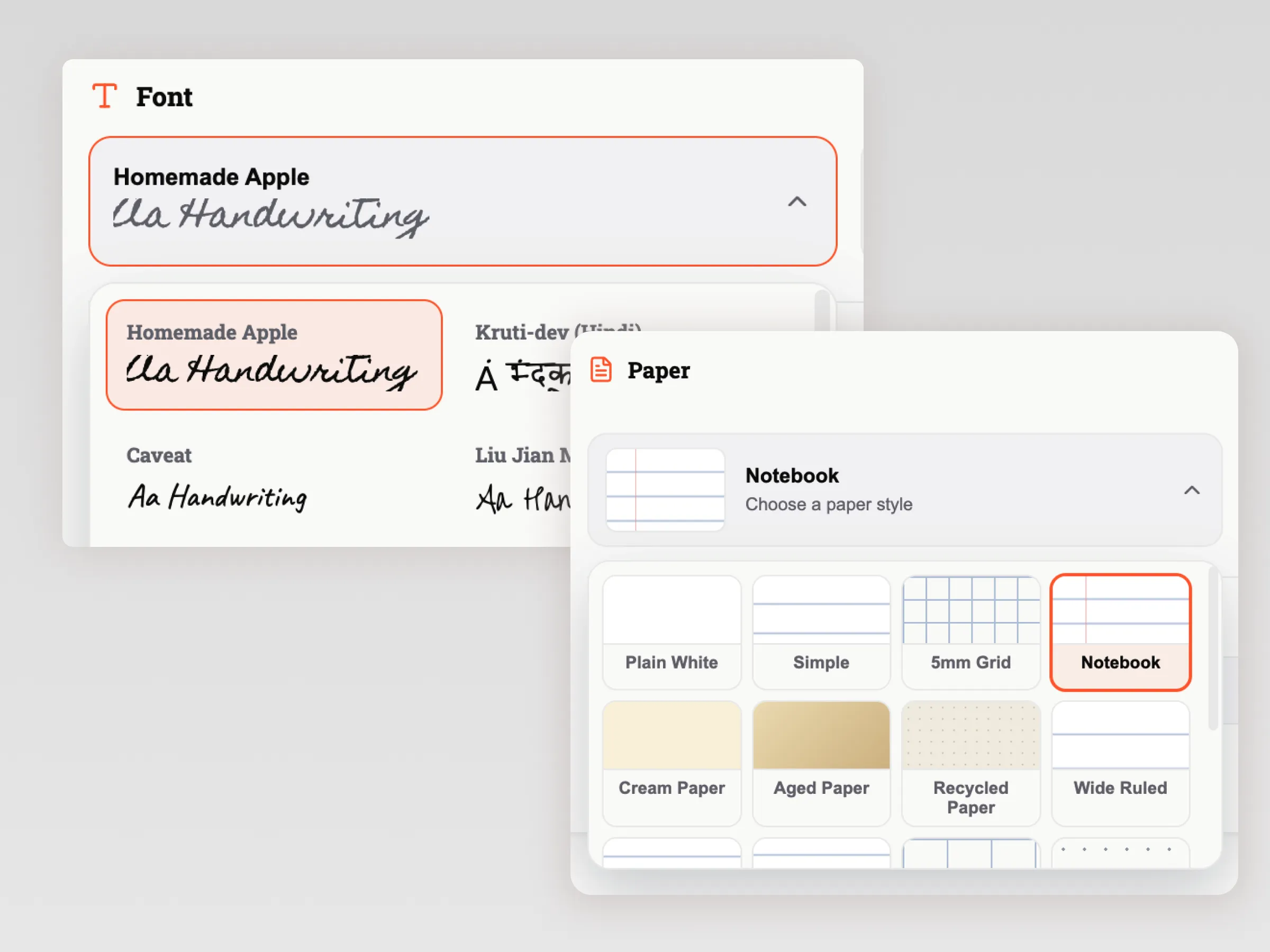
Adjust the available page settings to improve readability and page fit. Depending on your selected options, you can change settings such as font size, spacing, ink color, and page layout.
If the text looks crowded, try reducing the font size, adjusting the spacing, or dividing the content into shorter sections. Preview the result after making changes.
Tune page settings in the editor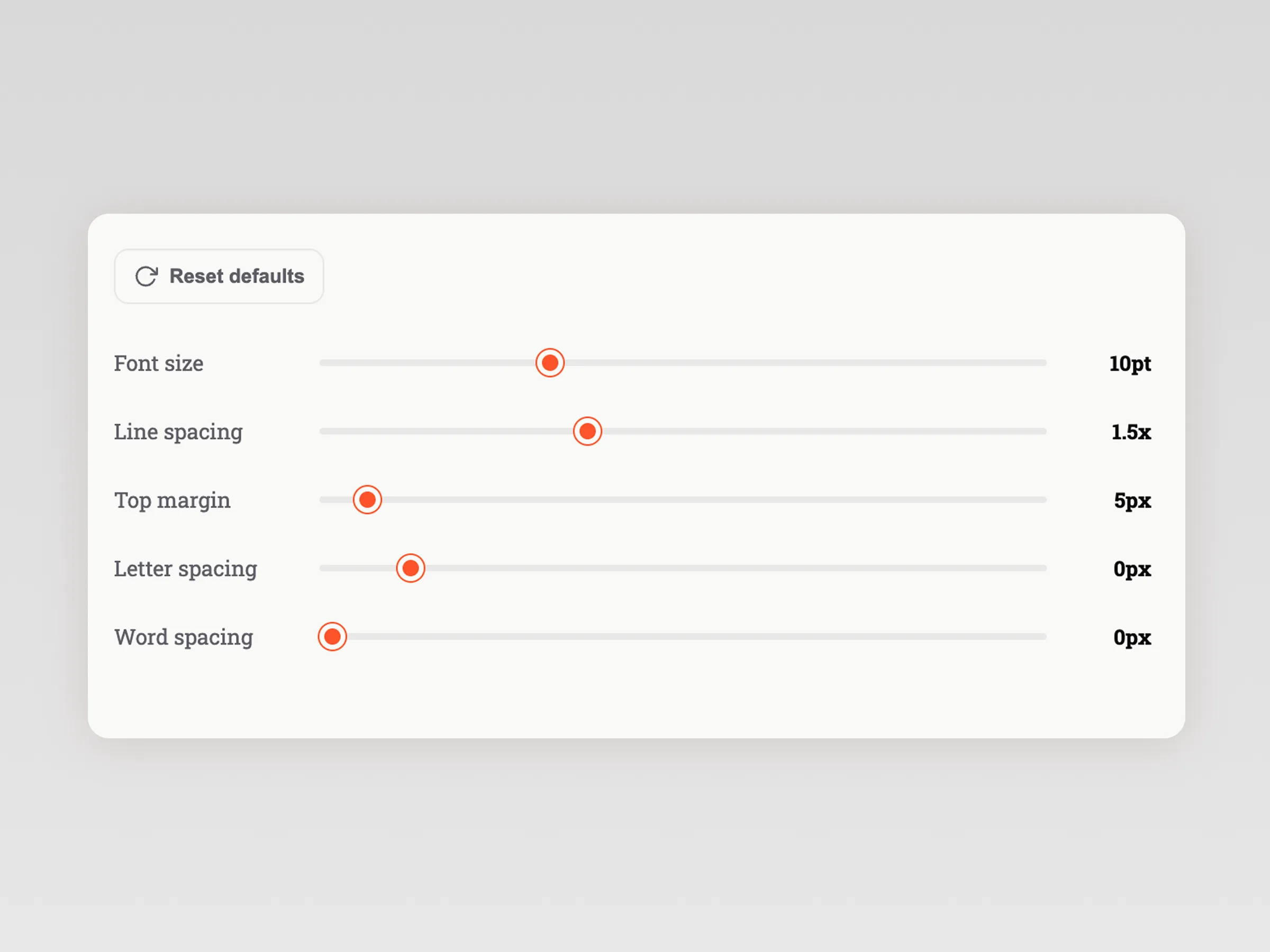
Preview the generated pages before exporting. Check the handwriting style, line breaks, spacing, page layout, and whether the content fits comfortably on the selected paper.
The preview helps you identify layout problems before downloading the final files. If a page looks too crowded, adjust the font, spacing, or page settings and preview it again.
Review the preview in the editor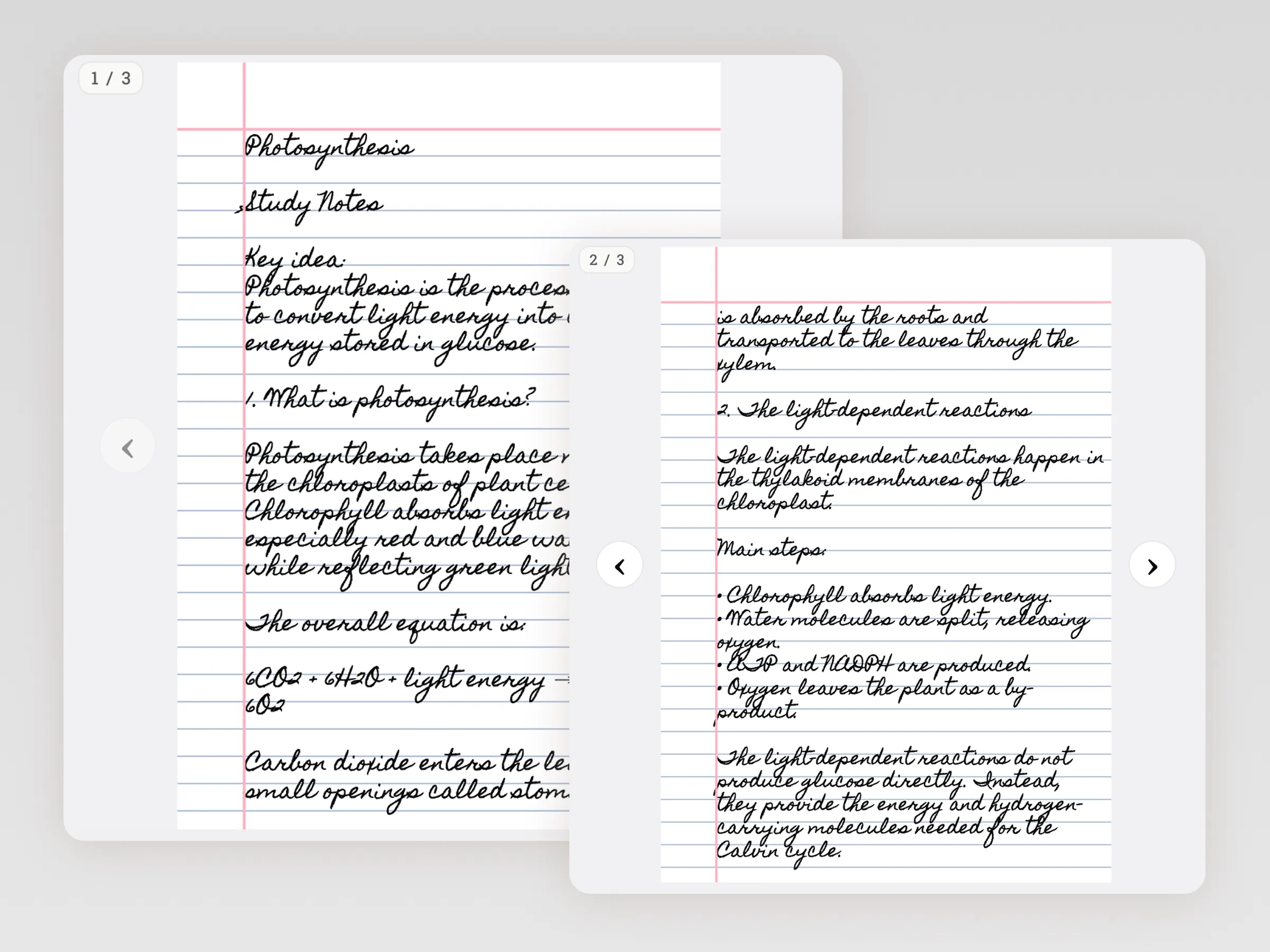
Settings
Plain paragraphs, headings, and short lists are usually the easiest to convert into clean handwritten pages. Complex tables and multi-column layouts may not keep their original structure exactly.
Choose the handwriting font first, then tune font size, line height, letter spacing, and word spacing so the page reads naturally.
Set the page margins and paper background early. Adjusting margins usually fixes crowded pages better than adding more effects.
Use page effects lightly after the handwriting font, spacing, margins, and paper style already look right. Effects can help polish the final page, but they should not replace the core layout choices.
Examples
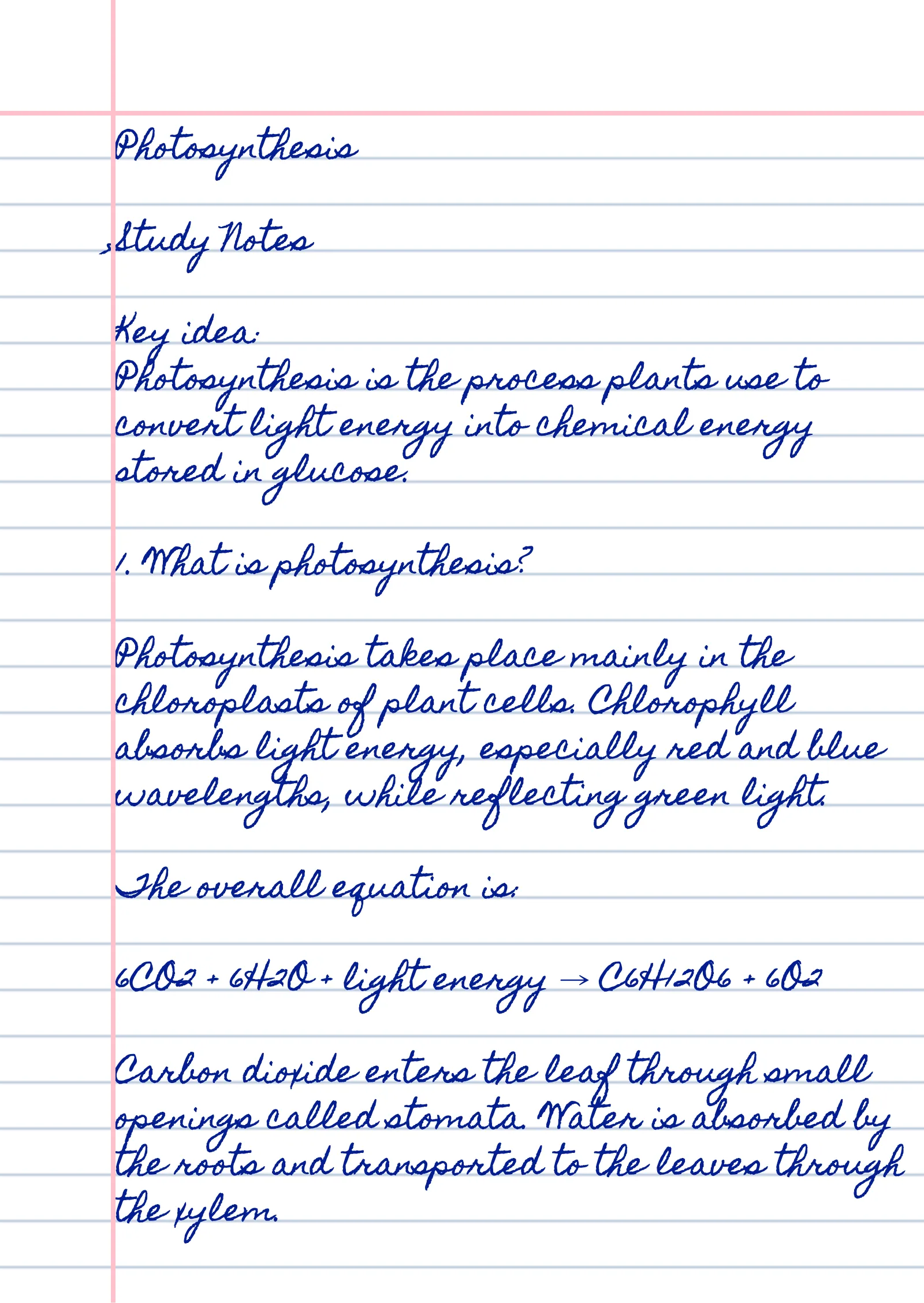
Typed study notes converted into a readable handwritten-style page using a handwriting font and lined paper.
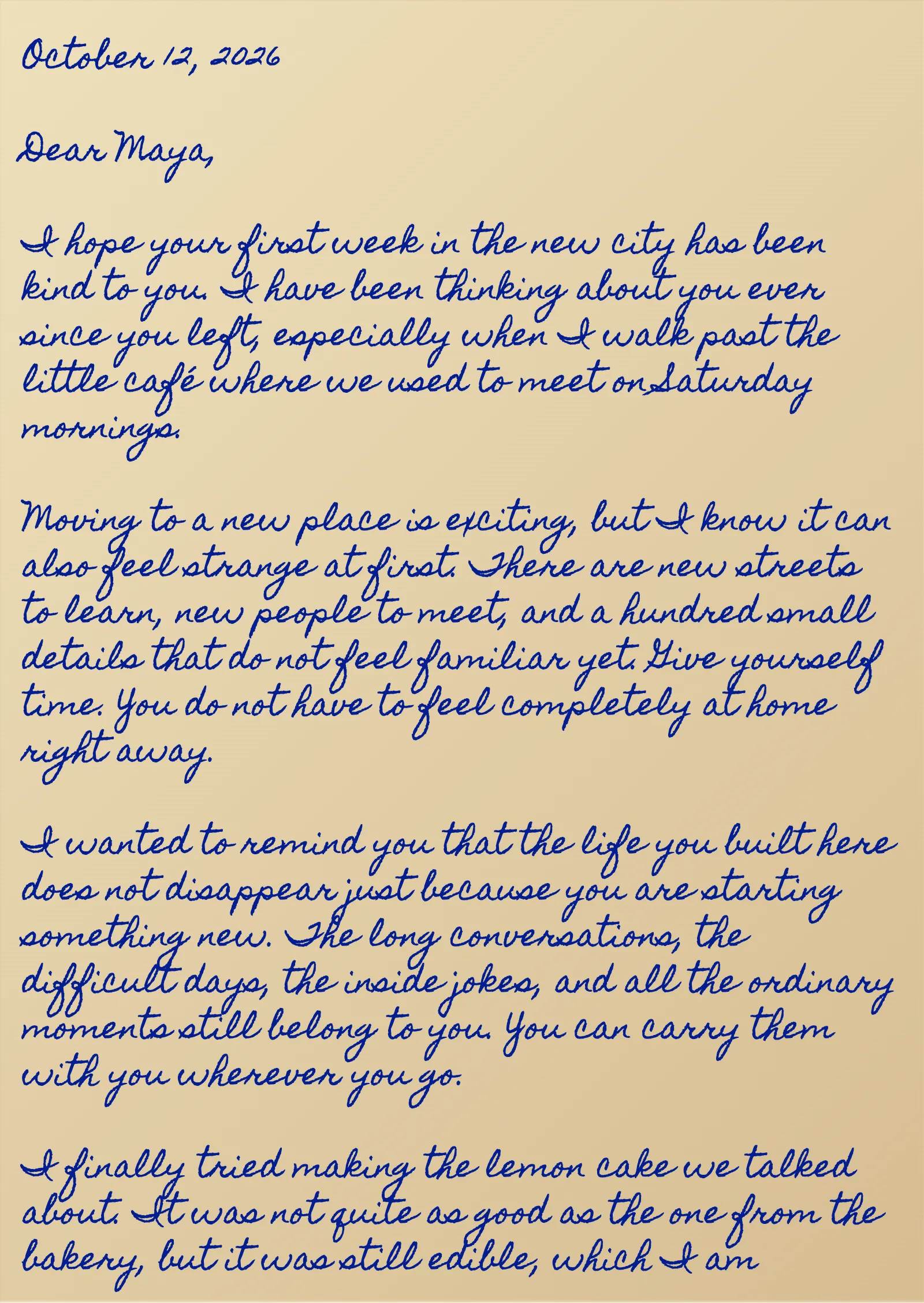
A typed personal letter converted into a handwritten-style page with a different font and paper style.
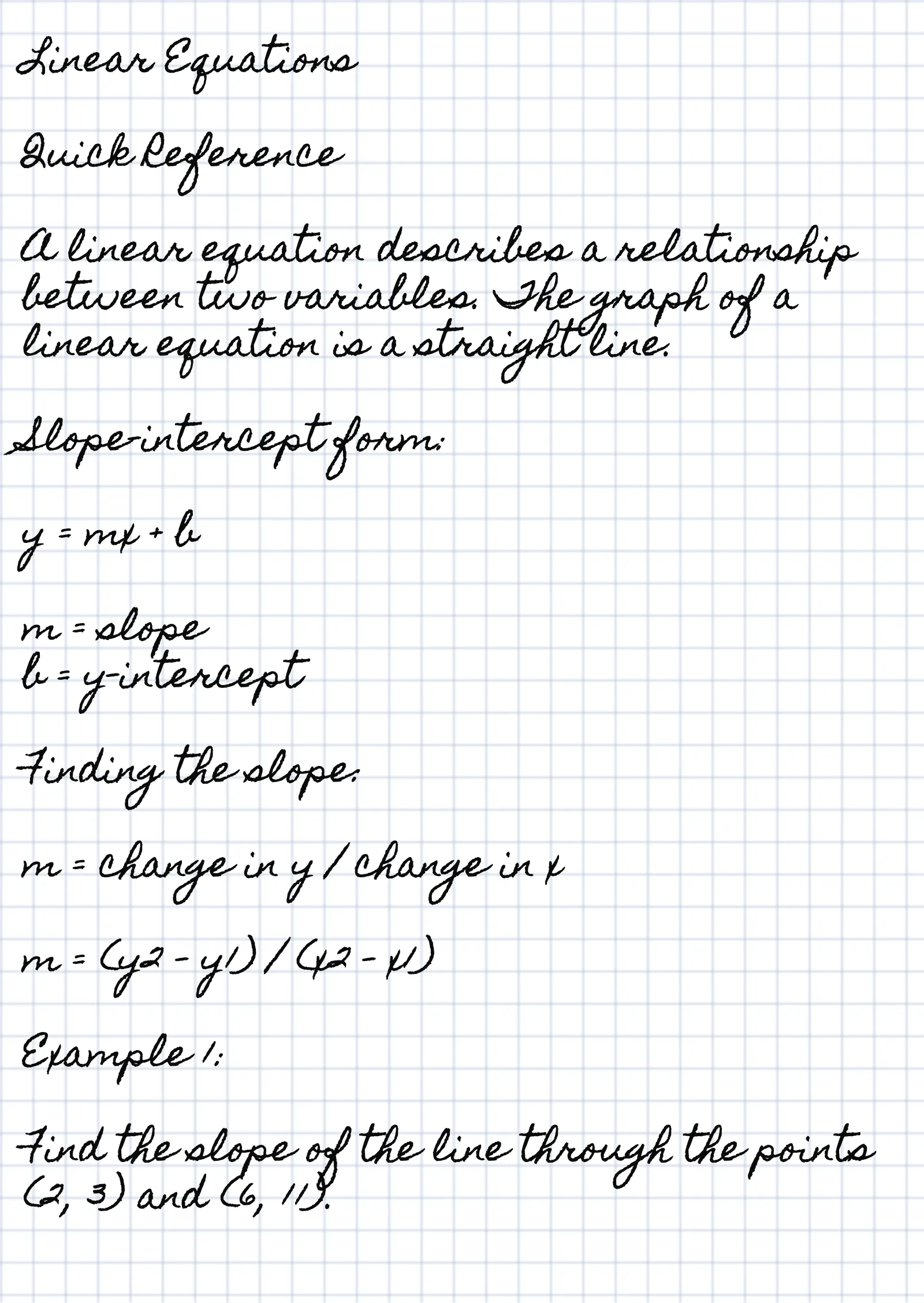
Typed notes converted into handwritten pages with a grid paper layout.
Export
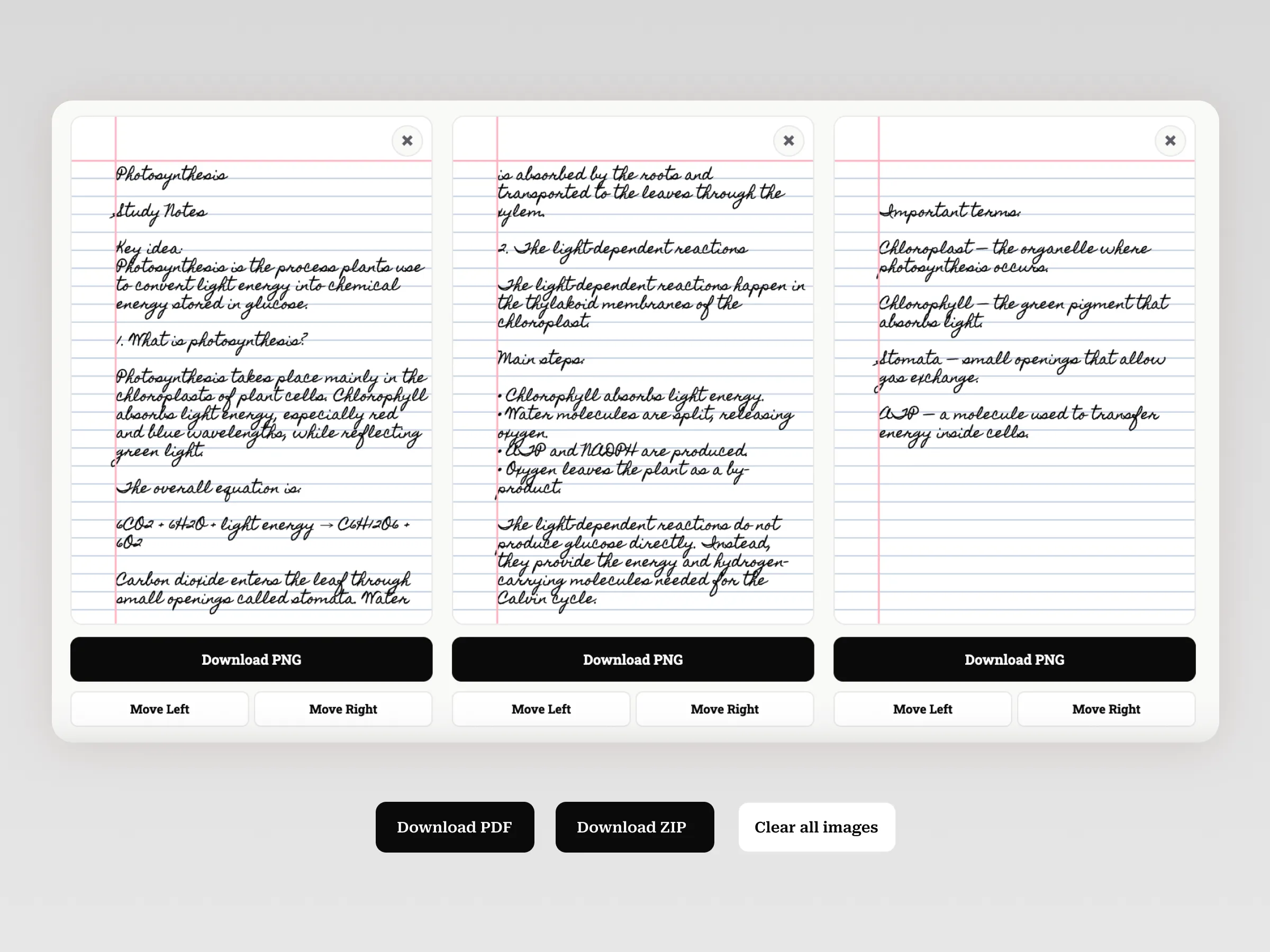
Export one selected handwritten page as a single image.
Save or print a multi-page handwritten document together.
Download multiple handwritten page images together in one file.
| Format | Best for |
|---|---|
| PNG | Exporting one selected handwritten page as an image |
| Saving or printing a multi-page handwritten document | |
| ZIP | Downloading multiple handwritten page images together |
PDF and ZIP exports follow the same current 30-page document limit.
Limits
The current editor supports up to 30 handwritten pages per document. If your content exceeds 30 pages, only the first 30 pages are previewed and available for export.
For longer documents, split the text into smaller parts before converting it. This keeps the preview and exported files within the current page limit.
The preview stops at page 30. Pages after page 30 are not included in the preview or export.
Use Cases
Useful for typed notes that need a handwritten look.
Good for short messages, letters, or thank-you notes.
Works well for simple learning materials and practice pages.
Create journal pages, prompts, and personal writing layouts with different handwriting fonts and paper styles.
Use handwritten-style text for creative layouts, mockups, visual projects, and digital content.
Create handwritten-style documents that can be previewed, exported, printed, or used digitally.
FAQ
Type or paste your text into the editor, choose a handwriting font and paper style, preview the pages, and export the handwritten result.
Yes. You can choose from the handwriting fonts currently available in the editor.
Yes. The editor provides available paper styles that can be used with the selected handwriting font and page settings.
Yes. You can export the selected handwritten page as a PNG image.
Yes. You can export a multi-page handwritten document as a PDF, subject to the current 30-page document limit.
Yes. You can download multiple generated page images together as a ZIP file, subject to the current 30-page document limit.
The current editor supports up to 30 pages per document. Documents that exceed this limit should be split into smaller parts.
The preview stops at page 30. Pages after page 30 are not included in the preview or export. Split longer documents into smaller parts before generating the pages.
No account is currently required to use the basic text to handwriting converter.
The basic converter is currently available to use without an account. Features, limits, and pricing may change as the product develops.
Ready to begin
Convert your text into handwritten-style pages with customizable fonts, paper styles, and page settings. Start in the editor and create a page that fits your project.